Complete guide
How to Brand Shipping Labels: 4 Ways That Work
Learn how to brand shipping labels with your logo: shipping software, pre-printed stock, DIY design or a 4x8 branding tool. Costs, limits and steps compared.
11 min readOct 30, 2026Read
Shopify shipping labels can't carry your logo on their own. See what Shopify and shipping apps offer, and how to add your logo to the labels you already buy.
Shopify shipping labels let you buy postage and print the label from the order page, using Shopify's carrier accounts. What Shopify doesn't do natively is put your logo on them. Shipping apps such as ShipStation can, as one feature of a larger paid plan.
If the logo on the label is all you're after, you don't need a whole new shipping setup. This guide shows what Shopify and shipping apps offer, and how to add your logo to the Shopify labels you already buy with Brand My Label.
Not natively. The only label branding setting Shopify offers is a sender name: under Settings, Shipping and delivery, in the Documents section, Sender name on shipping labels takes a name of 3 to 25 characters and prints it on labels for every supported carrier. Shopify's label settings have no option for a logo or image.
There are two ways to get your logo onto the label itself:
Brand My Label turns your 4x6 Shopify label into a 4x8 branded label: your label fills the bottom 6 inches, and the 2-inch strip above it is where you place your logo. Nothing changes in how you buy labels or fulfill orders in Shopify. The branding happens in your browser: a label you upload from your computer is never sent to Brand My Label's server, and the downloaded PDF carries no watermark.
Buy the label from the order page as usual. When you print it, pick the 4x6 size (Shopify lists it as Thermal 4x6, next to Letter and A4) and save the label from the print preview as a PDF instead of printing it. Shopify's printing guide covers the print preview, and its guide to buying labels covers the order page. Brand My Label also accepts PNG and JPG files.
Save each label as its own file. Brand My Label reads the first page of a PDF, so a file holding 20 labels would only brand the first one.
Open the label editor and sign in; you need a free account to use it. Click "Upload Label (PDF or Image)" and pick the file you saved, or drag it in.
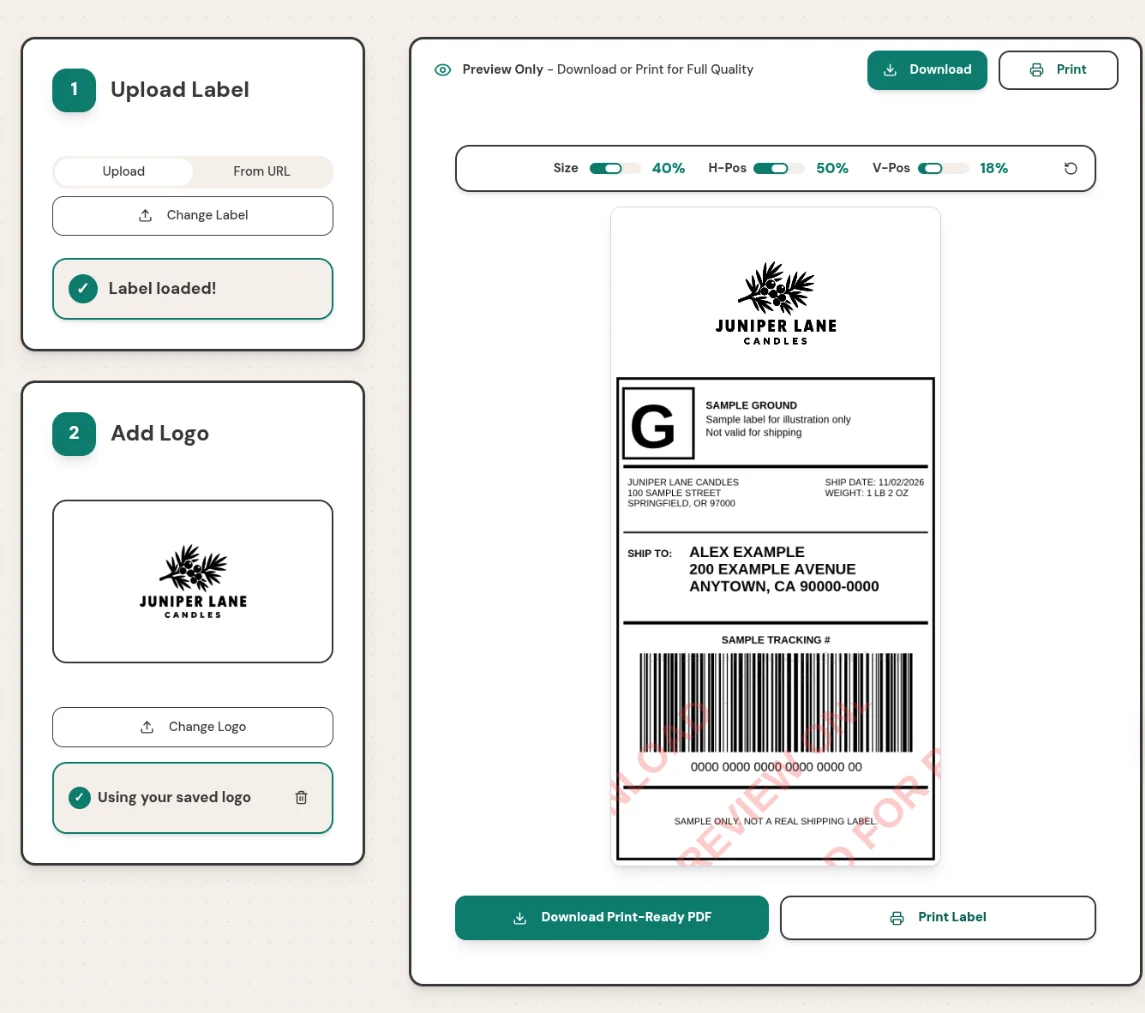
Click "Upload Your Logo" and choose a PNG, JPG or SVG file. A high-contrast logo prints best, because a thermal label printer prints in black unless it's a color label printer.
Use the Size, H-Pos (horizontal position) and V-Pos (vertical position) sliders until the logo sits inside the top 2-inch strip, clear of the label, and check the preview. A large, square or tall logo can spill onto the label, and usually needs a smaller Size to fit the strip. Then click "Save Logo for Next Time".
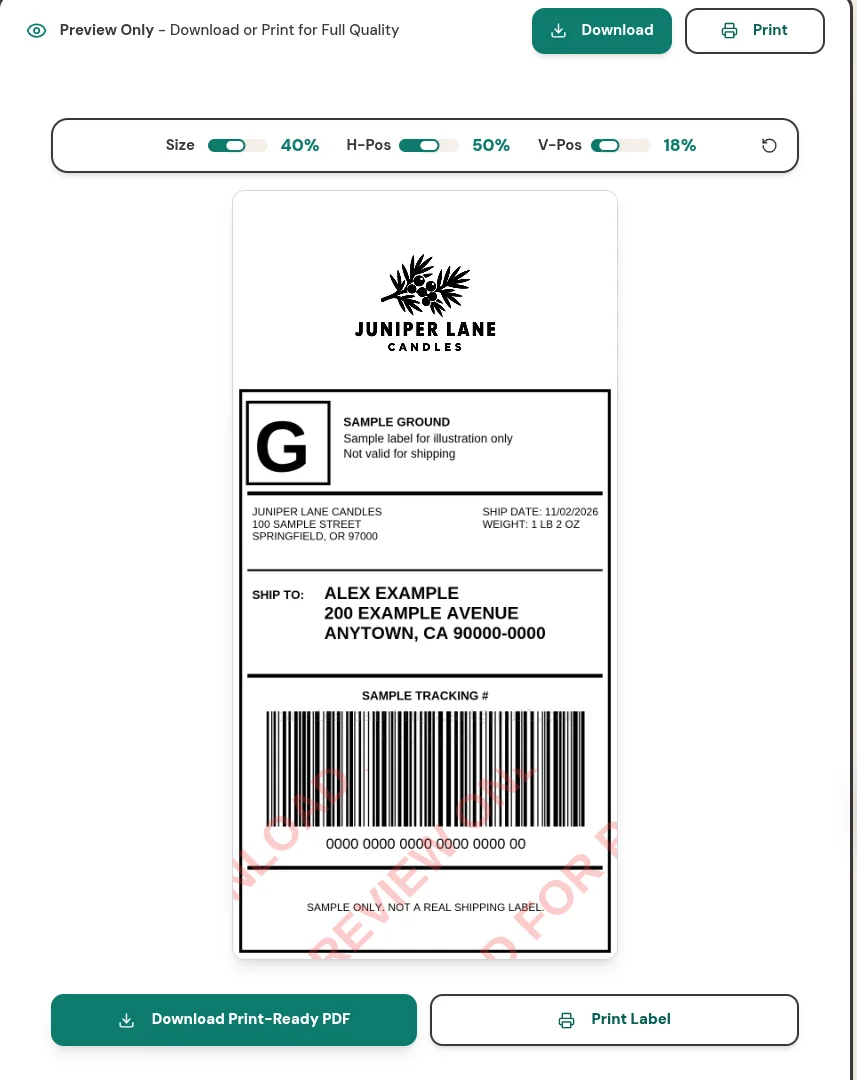
Click "Download" for a 4x8 PDF at 300 DPI, or "Print" to open your browser's print dialog. Load 4x8 labels in your printer and print the PDF at its actual size.
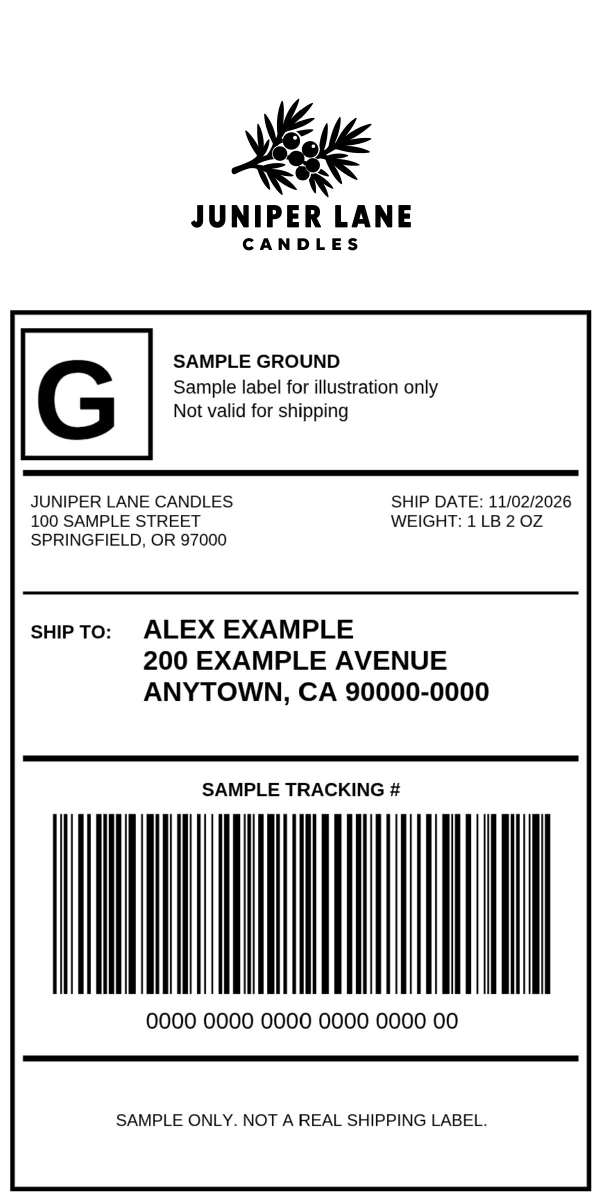
You set up your logo once. "Save Logo for Next Time" keeps it in your browser under your account, along with its size and position, so the next time you sign in on that browser it's already in place. From then on, branding a Shopify label is the label itself: upload it, check the preview, and download or print.
The logo is saved per browser. If you brand labels on a second computer or in another browser, upload and save your logo there once too.
The free plan covers 10 labels a month and needs no credit card. Pro is $5 a month, or $50 a year, for unlimited labels. Compare the plans.
The label is the first thing your customer sees, but the packing slip is what they read. Shopify lets you edit its packing slip template (under Settings, Shipping and delivery, Documents), which takes a little HTML and Liquid, and its Order Printer app adds templates for invoices and other documents.
A branded packing slip is a good place for things a shipping label can't hold: your logo in color if you print slips on a desktop printer, a short thank-you note, how to reach you, your returns policy, or a code for the next order. Keep it to one page, and make sure the order details stay easy to check against what's in the box.
Together, a logo on the label and a matching packing slip make even a plain mailer feel like it came from a brand rather than a warehouse.
Shopify prints its labels at 4x6, so a branded 4x8 label needs a printer that handles 4x8 labels and a roll or stack of 4x8 label stock. Check your printer's supported label sizes in its manual or on the maker's site before you buy stock, and set the new label size in the printer's settings or your print dialog.
Print one test label first. Scan the barcode with your phone, check that nothing overlaps the addresses, and only then print the rest of the day's orders. If you print on a Rollo printer, our guide to branded shipping labels on a Rollo printer walks through that setup.
| Option | What it puts on the label | Cost | What changes in your setup |
|---|---|---|---|
| ShipStation label branding | Your logo, black and white | Plans from $14.99 a month | You buy labels in ShipStation instead of Shopify Shipping |
| Pre-printed custom stock | Your logo, printed in advance | Custom-printed label stock | Reorder the stock to change the design |
| Brand My Label | Your logo above the label on a 4x8 label | Free for 10 a month, then $5 a month | Nothing: you keep buying labels in Shopify |
If you already run your orders through ShipStation, use its branding. If you buy labels in Shopify and want your logo on every package without a new subscription or a new shipping setup, add the branding step.
For a wider look at every way to brand a label, including pre-printed stock and doing it by hand, read how to brand shipping labels.
You can choose the carrier, service, package and paper size, and set a text sender name that prints on the label. Shopify's label settings have no option for a logo or image, so the logo has to come from shipping software or a branding step like Brand My Label.
To brand the label itself, save the label after you buy it and add your logo with a tool such as Brand My Label. To brand what's inside the box, edit Shopify's packing slip template.
You can add branding around it. Leave the carrier's part exactly as printed (barcodes, tracking number, addresses and postage) and put your branding in unused space, such as the extra 2 inches of a 4x8 label.
No. You can buy labels through other shipping software or directly from a carrier, and add the tracking number to the order in Shopify. The branding step works for any 4x6 label you can save as a PDF, PNG or JPG.
Shopify shows the price in your local currency before taxes, using what it calls discounted rates from Shopify-supported carriers. Label charges are billed through your Shopify account, either on your monthly bill or straight away once you reach a spending threshold, and your first label is billed on its own. The carrier can adjust the charge later if the weight or package you entered is wrong; see Shopify's label billing guide.
No. Shopify's help says you can't print shipping labels in the Shopify admin without an order. Stores with a US or Canadian location can send domestic return labels, but those are created from an existing order with at least one fulfilled item. For a one-off shipment, Shopify notes you might be able to print a label from the carrier's website, or you can use other shipping software.
Shopify sells the postage and generates the label for you to print. You supply the printer and the paper or adhesive labels: Shopify's guide says you need a desktop printer or a supported label printer.
No. Save it once with "Save Logo for Next Time" and it's ready each time you sign in on that browser. You only upload the new shipping label.
Shopify doesn't put your logo on its labels, and a shipping app that does comes with a bigger subscription. If the logo is what you want, keep buying labels in Shopify and add the branding step.
Questions? Email support@brandmylabel.app.
To put your logo on your Shopify shipping labels, try Brand My Label free: 10 labels a month, no credit card.
Learn how to brand shipping labels with your logo: shipping software, pre-printed stock, DIY design or a 4x8 branding tool. Costs, limits and steps compared.
Put your logo on every shipping label your Rollo printer prints: use 4x8 labels, upload your 4x6 label PDF, and print. Start with 10 free labels a month.